We have to admit, we have an odd fascination with WSL — the Windows subsystem for Linux. On the one hand, it gives us more options on Windows 10 for running the software we love. On the other hand, we wonder why we aren’t just running Linux. Sometimes it is because our cool laptop doesn’t work well on Linux. Other times we are using someone else’s computer that we aren’t allowed to reload or dual boot. Still, as long as we have to use Windows, we are glad to have WSL. A recent blog post by [Hanselman] shows some very cool tricks for using WSL that make it even better.
Exploring WSL
Did you know you can use WSL to run Linux commands in a Windows command shell? For example, you have a long directory and you want to run grep:
dir c:\archive\* | wsl grep -i hackaday
Of course, from bash you could access the same directory:
ls /mnt/c/archive | grep -i hackaday
Extensions
 Many of the tricks rely on the fact that bash doesn’t assume any executable file extension. If you try to run explorer, for example, from a bash shell, nothing happens. But if you append the .exe extensions, Windows programs will run and, by default, the usual Windows directories are in the path.
You do need to watch out for path name conversion. For example, if you provide “.” as an argument to explorer, you will open up a network share //wsl$/Ubuntu/home/user_name, for example. Of course, that’s another trick. You can access your WSL directories from windows using that notation (obviously, Ubuntu and user_name may be different for your installation). However, ordinary paths do not work.
Path Conversion
You can, however, use the wslpath utility to convert paths in both directions:
$ wslpath
Usage:
-a force result to absolute path format
-u translate from a Windows path to a WSL path (default)
-w translate from a WSL path to a Windows path
-m translate from a WSL path to a Windows path, with '/' instead of '\'
For example:
$ explorer.exe `wslpath -w /bin`
X11 and More
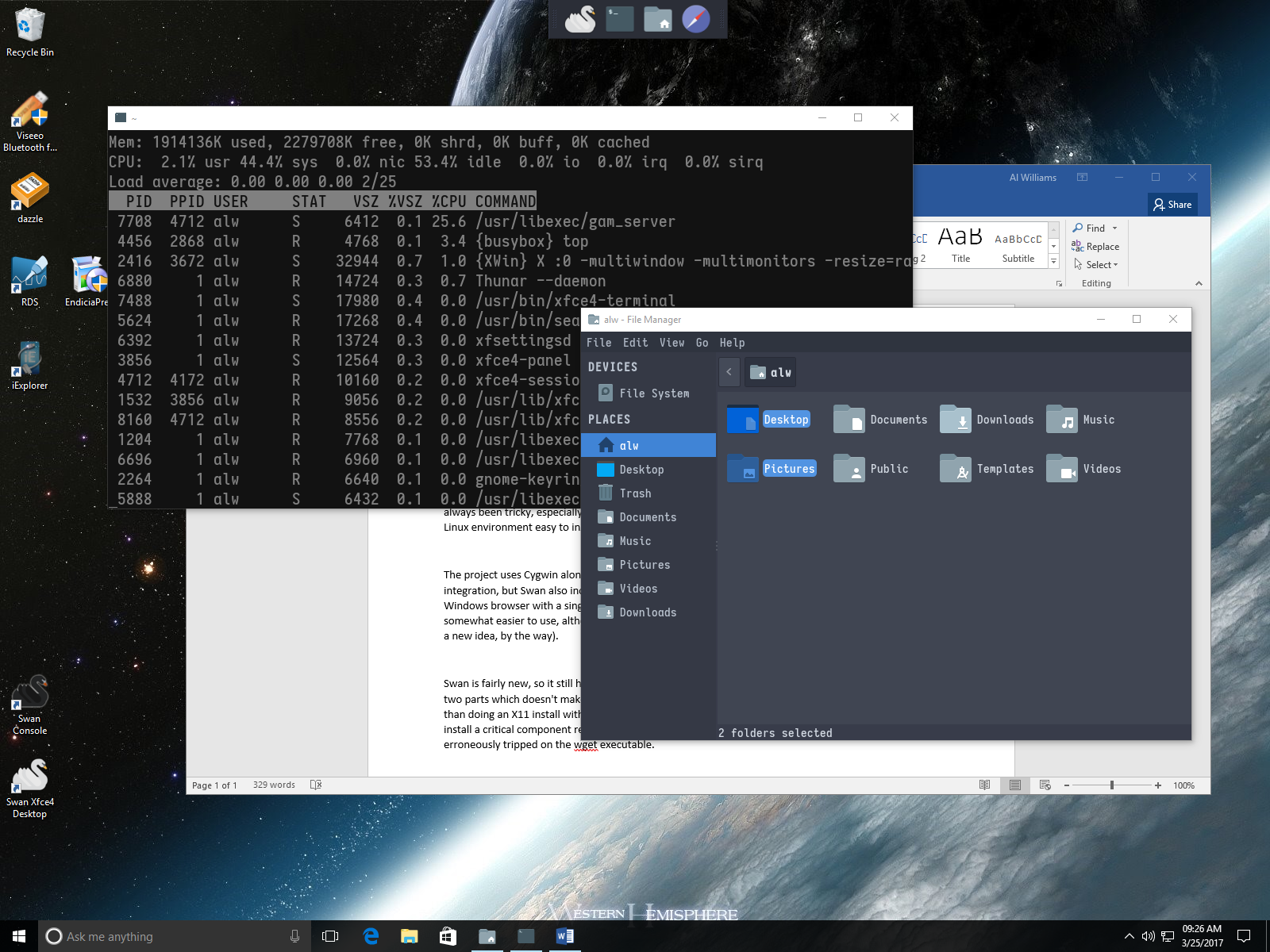 [Hanselman] discusses a number of tips, including some about using development tools and git. You can also install multiple WSL flavors and export them to other Windows machines. He also mentions running X11 using paid tools Pengwin and X410. We say just use Swan.
Speaking of Swan, it is a great alternative to WSL on any Windows version, not just Windows 10. In truth, it is just Cygwin with X11 preconfigured, but it is much easier than trying to get X11 running on a bare Cygwin install. On the one hand, this is a much more desktop Linux solution than WSL. On the other hand, WSL loads real distributions and integrates nicely with Windows 10. But if you load both, you can get the advantages of both, too.
Sell Out?
Given the choice, we’ll just use Linux. Honestly, if your workflow is mostly Web-based, it hardly matters anymore. You load Chrome or your choice of browser and everything works. Of course, our Linux boxes tend to be way more efficient and also stay running better than Windows.
However, if you find yourself using Windows, Cygwin has long been a big help. Now WSL is another tool to get your Linux tools on a Microsoft-controlled box.
No comments:
Post a Comment